Installation Guide

Download the native app for macOS — no Docker, no terminal

Heads up: The macOS app is unsigned — your OS will show a one-time security warning when you first open it. This is normal for free, open source software. The install section below walks you through it.

Download the App (macOS)

Step 1: Download VinylFlow

Click to download the macOS app:

Current version: v0.2.0-beta6

Windows: The native Windows app is under development — Windows users can use the Docker install in the meantime.

Step 2: Install and open — macOS

  1. Unzip the downloaded file — you'll get VinylFlow.app
  2. Move VinylFlow.app to your Applications folder (optional but recommended)
  3. Double-click to open — macOS will say it can't be opened because it's from an unidentified developer
  4. Open System Settings (the gear icon in your Dock or Apple menu)
  5. Go to Privacy & Security
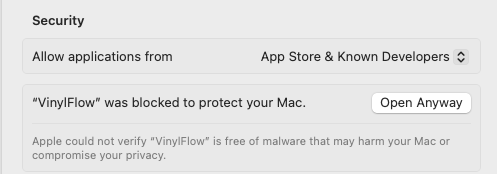
  6. Scroll down — you'll see a message: "VinylFlow was blocked from use because it is not from an identified developer"
  7. Click Open Anyway
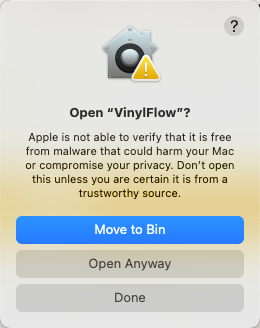
  8. Click Open Anyway again in the confirmation dialog

Why does this happen? Apple charges developers for a signing certificate. VinylFlow is a free, open source project and isn't commercially signed. You can verify the full source code on GitHub at any time. You only need to do this once — macOS will remember your choice.

Here's what you'll see at each step:
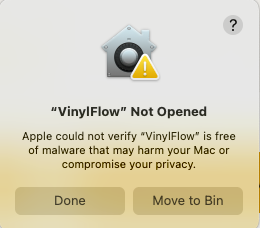
macOS blocks VinylFlow on first launch
1. macOS blocks the app — click Done
Privacy and Security — Open Anyway button
2. Go to Privacy & Security → click Open Anyway
Final confirmation dialog — Open Anyway
3. Confirm by clicking Open Anyway

Step 2: Windows

Windows desktop app — coming soon.

The native Windows app is currently under development. Windows users can run VinylFlow today via Docker — it's quick to set up and works exactly the same way.

Get started with Docker →

Step 3: First-Run Setup

When VinylFlow opens for the first time, it will show a setup screen asking for your free Discogs API token:
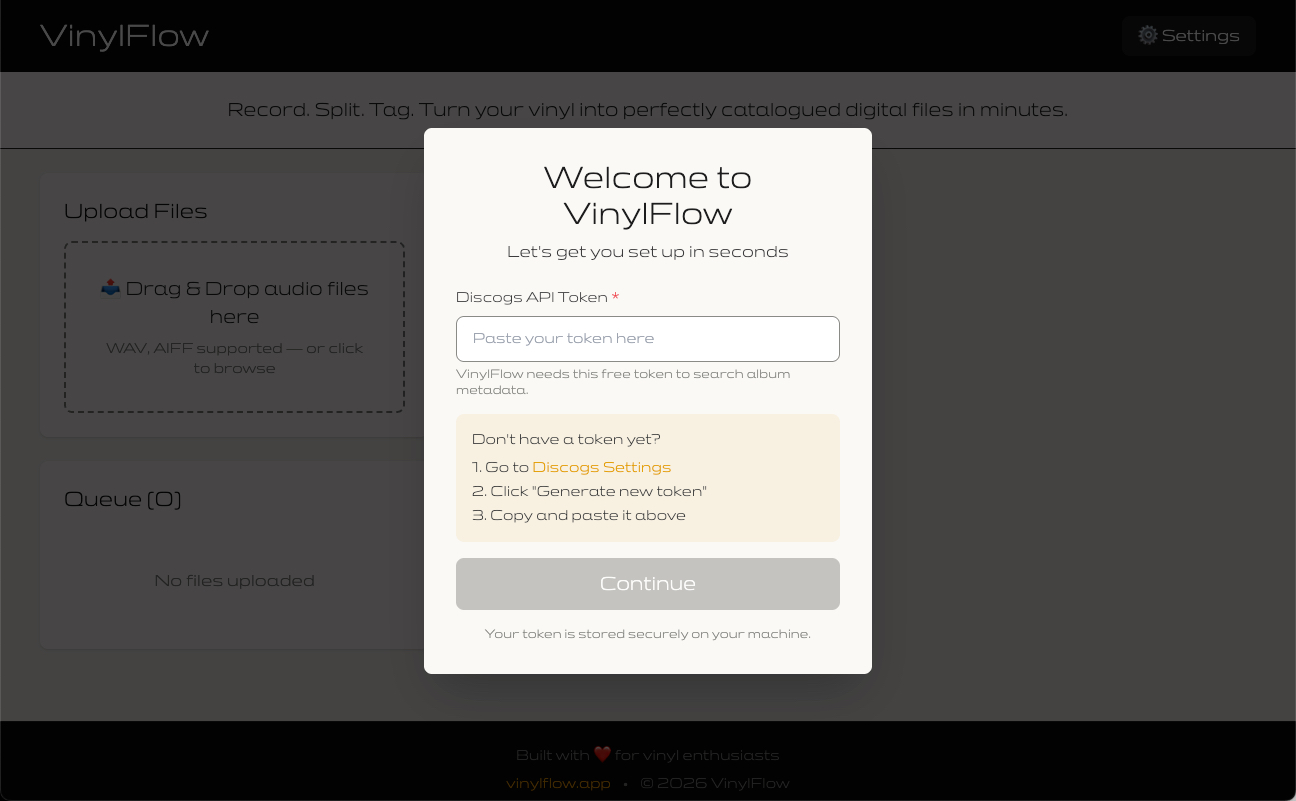
VinylFlow First-Run Setup Screen
  1. Get your free Discogs API token — Click the link in the setup screen or visit discogs.com/settings/developers
  2. Generate a new token — Click "Generate new token" on the Discogs settings page
  3. Copy and paste — Paste your token into VinylFlow's setup screen
  4. Click Continue — Done! VinylFlow validates the token and you're ready to go

That's it! 🎵 No config files, no terminal, no restart needed. Your token is saved and persists across restarts.

Tip: You can update your token anytime from the Settings (⚙️) menu in VinylFlow.

Running into issues?

Check our comprehensive troubleshooting guide for solutions to common problems.

Docker Install (Linux & All Platforms)

Who is this for?

Windows users — the native Windows app is under development, so Docker is the recommended install for now. Also works great for Linux, home server / NAS setups, and macOS users who prefer Docker.

You'll need:

That's it! Git is optional (see Step 1 below). No need to mess with configuration files — VinylFlow will guide you through setup in your browser.

Step 1: Get VinylFlow

Option A — Download ZIP (easiest, no Git required):
  1. Go to github.com/olimic1000/vinylflow
  2. Click the green Code button, then Download ZIP
  3. Unzip the folder to a location you can find (like Downloads or Desktop)
  4. Open the unzipped vinylflow folder
Option B — Clone with Git (for terminal users):
git clone https://github.com/olimic1000/vinylflow.git cd vinylflow

Step 2: Start VinylFlow

Using the terminal:
  1. Open your terminal:
    • Mac: Open "Terminal" app (or iTerm)
    • Windows: Open "Command Prompt" or "PowerShell"
    • Linux: Open your terminal application
  2. Navigate to the VinylFlow folder:
    • Type cd (with a space) and drag the vinylflow folder into the terminal, then press Enter
    • Or type the full path, like: cd ~/Downloads/vinylflow
    • Windows shortcut: In File Explorer, open the vinylflow folder, click the address bar, type cmd and press Enter
  3. Start VinylFlow by running this command:
    docker compose up -d
  4. Open your browser and go to http://localhost:8000

Step 3: First-Run Setup

When you open VinylFlow for the first time, you'll see a welcome screen that guides you through setup in seconds:

VinylFlow First-Run Setup Screen
  1. Get your free Discogs API token — Click the link in the setup screen or visit discogs.com/settings/developers
  2. Generate a new token — Click "Generate new token" on the Discogs settings page
  3. Copy and paste — Paste your token into VinylFlow's setup screen
  4. Click Continue — Done! VinylFlow validates the token and you're ready to digitize

That's it! 🎵 No hidden files, no terminal commands after this, no restart needed. Your token is saved securely and persists across Docker restarts.

Tip: You can update your token anytime from the Settings (⚙️) menu in VinylFlow.

Running into issues?

Check our comprehensive troubleshooting guide for solutions to common problems.

Manual Setup (For Tech-Savvy Users)

Prefer managing your own Python environment? Skip Docker and run VinylFlow directly with Python 3.11+ and FFmpeg (handles MP3, FLAC, and AIFF conversion).

Install Prerequisites:

# macOS (using Homebrew) brew install python@3.11 ffmpeg flac libsndfile # Ubuntu/Debian sudo apt-get update && sudo apt-get install python3.11 python3.11-venv ffmpeg flac libsndfile1-dev # Windows: Install Python 3.11+ and FFmpeg manually

Clone & Setup:

git clone https://github.com/olimic1000/vinylflow.git cd vinylflow python3 -m venv venv source venv/bin/activate # On Windows: venv\Scripts\activate pip install -r requirements.txt

Start the Server:

python -m uvicorn backend.api:app --host 0.0.0.0 --port 8000

Open http://localhost:8000 in your browser.

First-Run Setup: Just like with Docker, VinylFlow will show you a welcome screen on first run. Visit discogs.com/settings/developers to generate a free API token, paste it into the setup screen, and click Continue — done!

Alternative: Advanced users can still use a .env file if preferred. See the GitHub README for details.